
How a Photo Becomes a Color-by-Number Page
A normal coloring page keeps a picture’s outlines and throws its colors away. A color-by-number page does the opposite job as well: it keeps the colors, but organizes them. First the converter smooths the picture so tiny textures — fur, grass, fabric — do not shatter it into confetti. Then it gathers the thousands of shades in the picture into a small palette you choose, from 6 to 14 colors. Every patch of the picture is assigned to its nearest palette color, specks and slivers are merged into their neighbors, and each surviving region gets a clean outline and a number, placed at the widest point of the region so it is easy to spot and color around.
The palette itself is printed as a key with real color names — Pink, Sky Blue, Tan — not just numbers, and the finished sheet carries a small finished picture in the corner, so the person coloring always knows what they are building toward. Set expectations by picture type: simple, colorful artwork — a cartoon, a child’s drawing, a flat illustration — becomes a clean page with a few dozen regions. A real photograph holds far more shading, so it becomes a busier paint-by-number poster. Both are genuinely colorable; the Colors slider decides where on that scale your page lands.
How to Turn a Photo into a Color-by-Number Page
The whole process takes about a minute, and nothing is installed or uploaded:
- 1. Open the converter. Go to the free photo to coloring page converter — no account, no sign-up.
- 2. Upload your picture. Any JPG or PNG works: a pet photo, a family picture, a child’s drawing, or one of our kids coloring pictures. The file stays on your device the entire time.
- 3. Choose Color by Number mode. Tap the Color by Number button above the styles, then set the Colors slider — 6–8 for young kids, 10 for most pictures, 12–14 for detail.
- 4. Download or print the sheet. You get the complete page: numbered outline, finished-picture thumbnail, and the named color key along the bottom, ready for crayons, pencils, or markers.
A Real Example: One Unicorn, Ten Colors
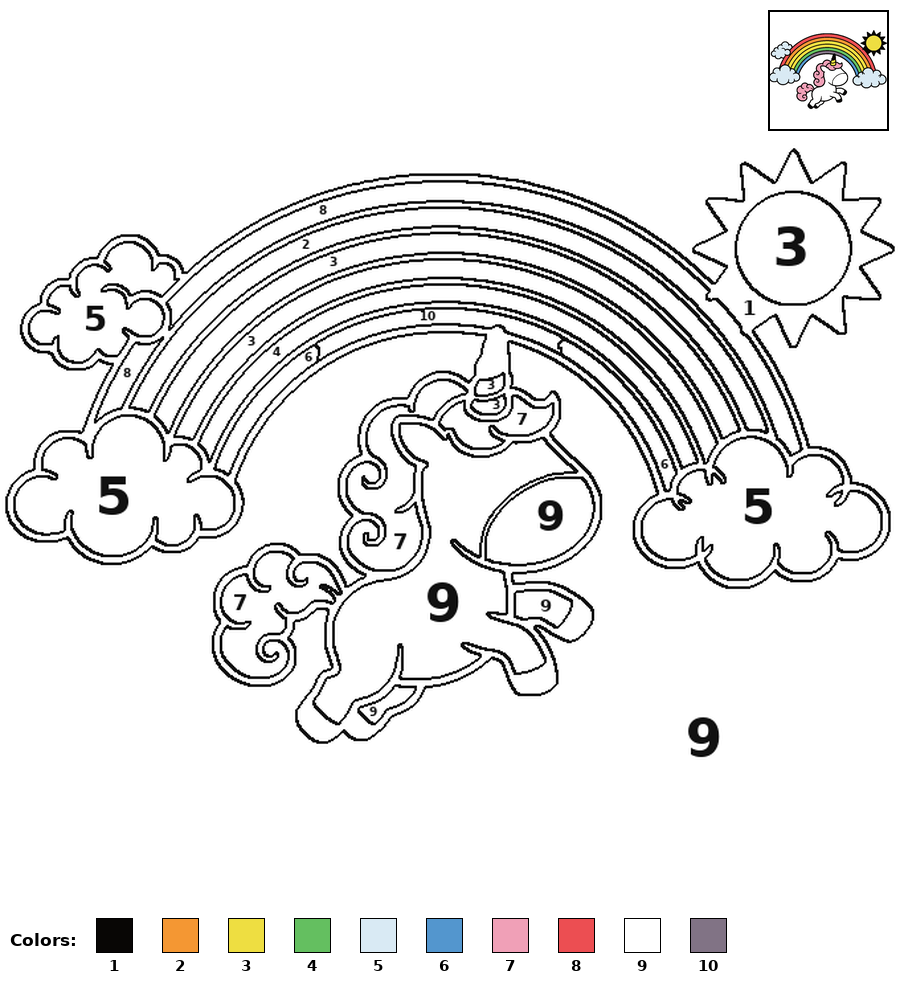
This sheet was produced by the tool itself, from the unicorn coloring picture in our kids library, at the default 10 colors. The clouds come out as one pale blue, the mane and tail as pink, the rainbow keeps its separate bands — and every region, down to the thin rainbow stripes, carries its number. The key along the bottom names all ten colors, and the finished picture in the top corner shows exactly what the completed page should look like.
Prefer a plain outline with no numbers? The same converter still makes those — our photo to coloring page converter guide covers the Simple, Detailed, and Pet Fur styles, and the pet photo guide goes deep on dogs and cats.
How Many Colors Should You Choose?
- 6–8 colors — for young kids and simple pictures. Big regions, a short key to search, and a page a preschooler can actually finish. The kindest setting for a first color-by-number.
- 9–11 colors — the balanced default. Enough colors to keep a picture recognizable and interesting, few enough to stay relaxing. Start here for drawings and clear photos.
- 12–14 colors — for older kids, adults, and detailed photos. More of the original shading survives, at the cost of smaller regions and a longer sitting. This is the paint-by-number end of the scale.
A quick rule of thumb: if the preview looks like confetti, slide down; if a face or a pet loses the markings that make it recognizable, slide up. The conversion re-runs in seconds, so try two settings and keep the better page.
Made for Classrooms, Quiet Time, and Rainy Afternoons
Color by number is a quiet powerhouse in a classroom: children practice number recognition and careful searching — find every 7, color every 7 — while genuinely making a picture. Because the converter runs entirely in the browser and never uploads the photo, a teacher can turn a class photo, the school mascot drawing, or a student’s own artwork into a page without the picture ever leaving the device. Print a stack for morning work or quiet time, or project the finished picture and let the class guess what today’s page will become. Our For Teachers & Schools page has more free classroom activities built on the same library.
And if you would rather skip making your own, our ready-made Color by Number pack has 20 finished printable pages — animals, a unicorn, vehicles, and more — each with its finished picture on the page and a full answer key at the back.
- Print on card stock for markers. Regular paper is fine for crayons and pencils; heavier paper stops marker bleed-through on number-dense pages.
- Print the key once, share the pages. For a group activity, one key sheet on the wall serves a whole table of colorers working from their own numbered pages.
Frequently Asked Questions
What is a photo to color by number converter?
Is the color by number maker really free?
Is my photo uploaded to a server or stored?
How many colors should I choose?
What pictures make the best color-by-number pages?
What do I get when I download or print?
Turn Your Photo into a Color-by-Number Page — Free
No sign-up, no watermark, and your photo never leaves your device.
Open the Converter